
Fake Ultrasound Reviews, Tutorials & Ideas
Your #1 Guide to the Best Fake Ultrasound Options. Whether you’re planning a prank, need a prop, or want to stage the perfect announcement, I’ve done the research so you don’t have to.

January 1, 2026
Everything you need to know about fake ultrasounds in one guide. From choosing between custom and template options to understanding what makes them look realistic, this covers uses, customization, legality, and where to find quality results.

January 13, 2026
January 12, 2026
January 12, 2026
January 11, 2026
January 11, 2026
January 10, 2026
January 9, 2026
January 9, 2026
January 8, 2026
January 7, 2026
January 6, 2026
January 6, 2026
January 5, 2026
January 4, 2026
January 3, 2026
January 2, 2026
January 2, 2026
January 1, 2026
December 27, 2025
December 14, 2025
December 3, 2025
November 29, 2025
November 18, 2025
November 5, 2025
October 22, 2025
October 8, 2025





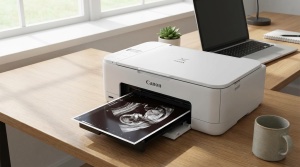
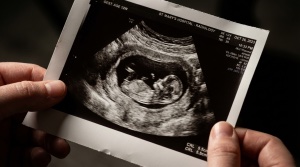
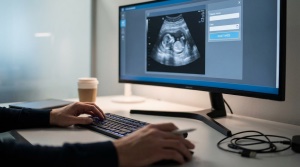
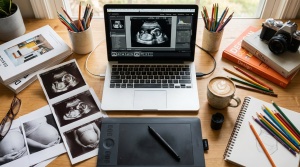
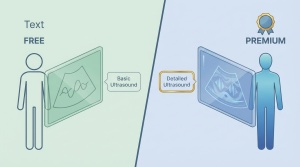
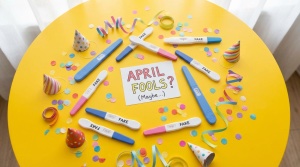
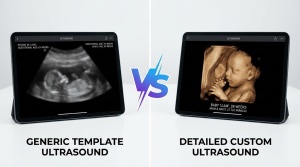



Most search results about fake ultrasounds fall into two categories. Sketchy sales pages or judgmental articles written by people who have never used one.
This site takes a different approach. I created My Fake Ultrasound (Fake-Ultrasound.com) as a straightforward resource for anyone curious about novelty ultrasound images. What they are, how they work, and how to use them responsibly.
What This Site Covers
You might be planning an April Fools prank. You might need a prop for a film project. You might want to create a memorable pregnancy announcement. Whatever your reason, you will find practical guidance here.
Here is what you will find:
- The Complete Fake Ultrasound Guide: Everything you need to know in one place
- Reviews of Fake Ultrasound Services: Honest comparisons so you do not waste money
- Tutorials and How-To Guides: Step-by-step instructions for DIY approaches
- Prank and Announcement Ideas: Creative ways to use fake ultrasounds
- Educational Resources: Understanding ultrasound images and terminology
Why Fake Ultrasounds Exist
Many people assume fake ultrasounds exist only for deception. I have seen something different.
Most people looking for novelty ultrasound images want them for harmless reasons:
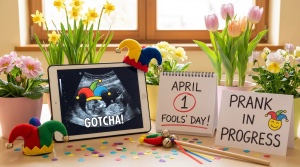
Pranks and jokes. Fake pregnancy announcements are a classic gag. They work well around April Fools Day or as payback for a friend who pranked you first. Done right, they create unforgettable reactions. Done wrong, they end friendships. I cover both scenarios.
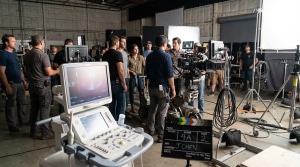
Film and theater productions. Movies, TV shows, student films, and stage productions need realistic props. A poorly made ultrasound image pulls viewers out of a scene instantly. Productions need options holding up on camera.
Photography and art projects. Maternity photographers, artists, and content creators sometimes need ultrasound imagery for their work. Stock photos rarely work when you need something specific.
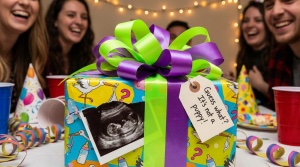
Gag gifts. A fake ultrasound tucked into a birthday card or white elephant gift gets genuine laughs. Assuming you know your audience.
Memorial keepsakes. Some people who have experienced pregnancy loss want a memento of what might have been. This is a sensitive use case, but a real one.
Education and training. Medical students, nursing programs, and health educators use example ultrasound images for training purposes.
My Approach
I have spent more time researching this niche than I care to admit. I have tested apps, ordered from various services, experimented with DIY methods, and talked to people about their experiences. The information on this site comes from hands-on research.
A few principles guide everything I publish:
- If something does not work well, I say so. If a free option is good enough for your needs, I will not push you toward expensive alternatives. If an app is garbage, you will know before you waste time downloading.
- Vague advice is useless. When I explain how to make a fake ultrasound look realistic, I get specific about paper types, image characteristics, and the details making the difference.
- People have different reasons for wanting fake ultrasounds. My job is not to decide whether your reason is valid. My job is to provide accurate information so you make informed decisions.
What This Site Is Not
I should be clear about what you will not find here.
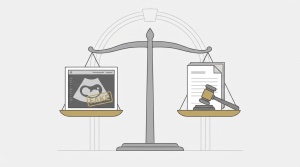
This is not a site helping people commit fraud. Using a fake ultrasound to deceive someone for financial gain, manipulate a relationship, or mislead medical professionals is illegal and harmful. I do not provide guidance for those purposes. I am direct about where the legal lines are.
This is also not a store. I review and recommend services when relevant, but I am not here to sell you anything. The goal is to be a useful resource.
Where to Start
New to this topic? Start with What Is a Fake Ultrasound? for a solid foundation. From there, explore based on what you are trying to accomplish.
Planning a prank? Check out the prank ideas guide.
Need something for a production? The film and theater props guide covers what you need.
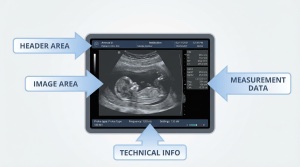
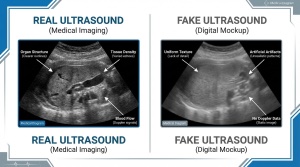
Want to understand what makes ultrasounds look authentic? Start with anatomy of an ultrasound image and real vs. fake comparisons.
Whatever brought you here, I hope you find what you are looking for. The contact page is there if something is missing or unclear.